Showing posts with label new. Show all posts

Wednesday, October 31, 2018

New IRIS G7050 FIRMWARE

THE NEW IRIS G7050 FIRMWARE DUMPED WITH INFINITYBOX CM2MTK


AND THIS THE DUMP LOG 
peration : Read Flash [ v1.58 ]

1. Power Off Phone , Remove battery , Insert back
2. Insert USB cable. In some cases require hold BootKey

Wait for phone...
Phone found! [ 3 ]
Sync...
Inital Boot Ok!
BB_CPU_PID : 6737
BB_CPU_NME : [MediaTek] MT6737M|MT6737_S00
BB_CPU_EXT : 0xCB00 , 0x8A00 , 0x0000
Processing BROM stage
Settings for BROM configured!
SecCfgVal : 0x00000000
BromVer   : 0x00FF
BLVersion : 0x0001
PreLoader : Active [ Boot with PL ]
BootLdrSS : NORMAL with PRELOADER
Processing DA stage
DA Select done, will use MTK_AllInOne_DA_v5.1624.16.07
Sending and initialize DA ...
Running DA ver.4.2 on BBID : 0x93
NAND Flash : NOT INSTALLED
eMMC Flash : 4E03018864726143CBA34320FB555681
Initialize Memory ...
DRAM already initialized by Preloader
DAgent sent , init HW now
eMMC FlashIC initialized
[eMMC] : FLASH_VEN : 0x88 , OEM : 0103
[eMMC] : FLASH_INF : [FORESEE] , draC
[eMMC] : FLASH_CID : 8801034E436172642043A3CB815693FB
[eMMC] : FLASH_BRT : 0x00400000 , 0x00400000 , 0x00400000
[eMMC] : FLASH_LEN : 0x00000001CE100000
[eMMC] : FLASH_UCP : 7393 MiB [eMMC 8 GiB]
DEV RID    : 0xDC77118BBE6D070182A36A39EE9EAD8B
INT RAM    : 0x00020000
EXT RAM    : 0x40000000 [1 GiB]
BOOT TYPE  : EMMC_FLASH_BOOT
SOC VERIFY : C1
Boot Ok!

Reading Flash Content now ...

xGPT : Normalize settings Ok!

Brand     : alps
ProdName  : full_elink8735b_6tb_m
ProdModel : G7050
Device    : elink8735b_6tb_m
AndroidVer: 6.0
MTKxCPU   : MT6737M
MTKxPRJ   : alps-mp-m0.mp1-V2.56.3_elink8735b.6tb.m

[Read Ok] : preloader_elink8735b_6tb_m.bin
[Read Ok] : lk.bin
[Read Ok] : items.img
[Read Ok] : boot.img
[Read Ok] : recovery.img
[Read Ok] : logo.bin
[Read Ok] : secro.img
[Read Ok] : tz1.img
[Read Ok] : tz2.img
[Read Ok] : system.img
[Read Ok] : cache.img
[Read Ok] : userdata.img

[ScatCFG] : MT6737M / V1.1.2 / elink8735b_6tb_m / EMMC
Android Info saved
MAUI Meta DB saved
HWConfig Info saved
FW Size : 2528 MiB
Scatter saved to : C:\MT6737M__alps__G7050__elink8735b_6tb_m__6.0__alps-mp-m0.mp1-V2.56.3_elink8735b.6tb.m\

All done!

Done!
Elapsed: 00:06:38
Reconnect Power/Cable!

DOWNLOAD LINK HERE

Sunday, November 26, 2017

new iris vox fortis firmware 100% working

New Iris Vox Fortis 
hi guys i've wanted to share with you this new firmware iris vox fortis dumped by me with infinity 
i have it uploaded  on mega and this is the link i hope you like it

Monday, January 9, 2017

NEW FULL IRIS NEXT G FIRMWARE HOT DUMPED 100% WORKING


IRIS NEXT G FIRMWARE


Hi Guys today i am bringing you the most wanted firmware iris next g the firmware is no where to be found but here i personely dumped the firmware and with pleaser i am sharing it with you guys 


Brand     : IRIS

ProdName  : NEXT_G
ProdModel : NEXT G
Device    : hct6735m_35gu_l1
AndroidVer: 5.1
MTKxCPU   : MT6735
MTKxPRJ   : IRIS_NEXT_G_V1.002

[Read Ok] : preloader_hct6735m_35gu_l1.bin
[Read Ok] : lk.bin
[Read Ok] : boot.img
[Read Ok] : recovery.img
[Read Ok] : logo.bin
[Read Ok] : secro.img
[Read Ok] : tz1.img
[Read Ok] : tz2.img
[Read Ok] : system.img
[Read Ok] : cache.img
[Read Ok] : userdata.img

[ScatCFG] : MT6735M / V1.1.2 / hct6735m_35gu_l1 / EMMC
Android Info saved
MAUI Meta DB saved
HWConfig Info saved
FW Size : 2061 MiB
Scatter saved to : C:\Users\AnonDz\Documents\MT6735__IRIS__NEXT_G__hct6735m_35gu_l1__5.1__IRIS_NEXT_G_V1.002\

for downloading the firmware click the download link below

Wednesday, October 19, 2016

All condor firmwares


                      All condor firmware 

Smartphone :

Tablettes :

IRIS VOX VERO 5.1 firmware 100% working


MT6735__IRIS__VOX_VERO Firmware5.1__IRIS_VOX_VERO_V1.0_20160324 

Saturday, August 1, 2015

Windows 10 est-il un système d’exploitation diabolique ?

Croyez-le ou non, Windows 10 est un excellent système d'exploitation.
Je l'utilise depuis les toutes premières preview et il faut bien le dire, Microsoft a fait un excellent boulot. Seulement, voilà... Microsoft a fait un choix stratégique qui est le même que celui de Google ou Apple (entre autres).
Avec Google Now et la synchro de notre compte, Google est capable de nous créer des rendez-vous à la voix, de répondre à nos questions, de sauvegarder nos données et nos applications, de nous géolocaliser, de récupérer des échantillons de notre voix, de connaître nos habitudes de surf, de nous afficher de la pub ciblée...etc.
Avec iCloud et Siri, Apple est capable de faire plus ou moins la même chose et collecte sensiblement les mêmes données personnelles, même si c'est un peu moins violent que Google.
Microsoft ne pouvait pas rester en marge de cette mini révolution technologique qui vise à calquer l'OS (mobile ou desktop) au plus proche de notre personnalité et de nos besoins. C'est une demande croissante... Les gens veulent de la personnalisation et de l'intelligence (toute relative) dans leurs applications.
Seulement, il n’y a pas de magie. Pour faire tout ça, et au passage vous coller un peu de pub (Windows 10 est "gratuit" en échange de vos données...), il faut pouvoir nous profiler le plus finement possible. Google, Apple et donc Microsoft avec son nouveau Windows 10, le font... Sans oublier Facebook, Amazon, Twitter qui le font aussi à leur manière.
Si je vous raconte tout ça, c'est parce que je ne comprends pas pourquoi d'un coup, d'un seul, tout le monde se réveille et gueule sur Microsoft parce que ces derniers collectent de la donnée personnelle et colle un tracker pub au cul de tous ses utilisateurs. Google et Apple font la même chose massivement depuis des années et apparemment, ça ne gène personne ou pas grand monde quand il s'agit de son smartphone.
Alors pourquoi ?
Honnêtement, je n'en sais rien, mais ma théorie c'est parce que ça se voit. En effet, en ce qui concerne les paramètres de confidentialité de Google ou d'Apple, faut creuser un peu pour les trouver et désactiver ce qu'il est possible de désactiver. L'utilisateur n'en a pas forcément conscience. Chez Microsoft, c'est simple. Ils veulent tellement pas dissimuler le truc qu'il ont intégré tout ça visible du premier coup d'oeil dans leurs gros menus pour bigleux ! Il suffit d'aller dans les paramètres, menu confidentialité pour tout voir, tout savoir et tout désactiver.


Évidemment, ça fait peur, car pour une fois, c'est écrit clairement, noir sur blanc, et en français et on sait précisément ce que Microsoft récupère.
Du coup, je pense que c'est surtout pour ça que le coup de flip international s'est propagé et a provoqué une grosse prise de conscience. Mais pour ceux qui s'intéressent un peu au sujet des données personnelles, ce n'est qu'un acteur de plus qui collecte des tas d'infos sur nous. Un de plus, et qui le fait de manière totalement décomplexée sans se cacher.
C'est donc le chemin choisi par Microsoft. Coupler qui nous sommes avec des fonctionnalités cool de notre époque. Et c'est pour ça que ça va plaire aux gens. Et dans quelques mois, tous les utilisateurs de Windows tiendront le même discours que les utilisateurs d'Android, de Gmail ou de Siri, à savoir : "Oui on sait, toutes nos données partent sur leurs serveurs aux États-Unis, mais c'est tellement pratique, et regarde je peux lui parler et il répond".
Ce choix de Microsoft est tout à fait discutable et je ne l'approuve pas, mais c'est leur choix pour, j'imagine, innover et rester dans la course face aux 2 autres. Si ce choix ne vous convient pas, rassurez-vous, vous disposez de plusieurs possibilités.
Premièrement, vous pouvez utiliser un autre OS... Un Linux (peu importe, la distrib) ou un FreeBSD qui fera tout ce que vous voudrez sans vous coller un tracker ou conserver vos données personnelles.
Ou alors, si vous appréciez Windows, et bien SCOOP ! Vous pouvez rester sous Windows 7 ou 8. Ou même passer à Windows 10. Il suffit, si vous n'approuvez pas ce choix technologique de Microsoft, de désactiver toutes les options qui vont piocher dans votre vie privée. Alors oui vous allez perdre pas mal de fonctionnalités sympas, mais là, c'est à vous de faire un choix. Profiter du confort proposé par Microsoft ou réduire un peu ce confort et préserver vos données personnelles.
Comme je le dis toujours, du moment qu'on a le choix et qu'on a conscience de ce choix, je ne vois pas pourquoi râler.
Bref, si vous souhaitez désactiver tout ce qui serait susceptible de récupérer vos données personnelles dans Windows 10 pour les envoyer sur les serveurs de Microsoft, c'est assez simple. Il suffit de fouiller un peu dans les paramètres et dès que vous tombez sur une mention de ce type "Déclaration de confidentialité", votre cerveau doit s'allumer, car c'est qu'il y a anguille sous roche. Désactivez alors l'option concernée.
Concrètement, ça se trouve dans :
Paramètres -> Mise à jour et sécurité -> Windows Defender


Désactivez tout ce qui est "Actif" et cliquez sur le bouton "Arrêter de me connaître". Faites le tour de tout ce que vous pouvez, et dès que vous voyez la mention "Déclaration de confidentialité", allez la lire et prenez le temps de la réflexion. Demandez-vous : "Ai-je vraiment besoin de cette fonctionnalité ?".
Au pire, désactivez tout et réactivez au compte-goutte quand vous en aurez besoin. Mon sentiment, c'est que vous saurez très bien vous en passer.
Bon voilà... Tout ça pour dire que oui, Windows 10 est un excellent OS, bien conçu, moderne et bien stable à condition de savoir où on met les pieds et que fondamentalement il n'y a pas de différences entre la collecte et le traitement des données personnelles de Microsoft et celui de Google ou d'un autre géant du net dans le même délire du "tout sur le cloud". Si Windows 10 vous chatouille, alors votre smartphone (et tous vos comptes Google) devrait aussi vous chatouiller. Si ce n'est pas le cas, c'est soit parce que vous avez fait ce qu'il faut pour éviter le problème (pas de compte Google, une ROM alternative...etc.), soit parce que vous n’étiez pas au courant de comment ça fonctionne vraiment.
Bref, à mon avis, pas de quoi s'enflammer ou brûler sur le bûcher telle Jeanne D'Arc, uniquement Microsoft, dont le seul crime est de faire pareil que les autres. Et même si vous pensez avoir entendu des voix, ce n'est que Cortana qui s'excite dans son coin ;-).
Évidemment, de mon côté, j'ai aussi installé Windows 10 et je vais donc commencer à explorer tout ça. Il est fort probable que je vous en reparle bientôt en vous filant quelques astuces. En attendant, si vous êtes l'heureux nouveau propriétaire d'un Windows, je vous invite à lire cet excellent post de Mouton Noir qui vous expliquera comment carrément désinstaller tout ce dont vous n'avez pas besoin.
Amusez-vous bien !


Friday, July 10, 2015

Apple launches two new “If it’s not an iPhone” ads


Today, Apple launched two new iPhone advertisements touting the device’s uniqueness and how much its customers love them. In the first ad, entitled Hardware & Software, Apple big-ups the way the iPhone’s hardware and software are both created by the same company.
In the second advertisement, entitled Love, Apple touts how 99% of iPhone customers love their devices. It then ends both advertisements with a similar tag line: If it’s not an iPhone, it’s not an iPhone.
Even though many devices have tried to copy Apple’s hardware or software efforts, due to the fact that Apple is one of the few that produces both, it’s able to have a leg up on Android OEMs when it comes to software and hardware synergy.

And it’s true, there simply is nothing like an iPhone. You may not like it, you may prefer something else, but there’s no denying that there’s nothing quite like the sum of all of its parts when it comes to the competition.

As someone who likes to try other phones, I can attest that many Android phones do a good job as far as smartphones go. But there’s just something about having both components designed by the same company that makes things mesh like no other.
Agree, or disagree? And what do you think about those new ads?

Wednesday, July 8, 2015

SwipeForMore lets you manage Cydia items with just a swipe

If you find the stock method of managing Cydia packages to be a bit cumbersome, then you’re not alone. Fortunately, saurik has opened up Cydia to third-party modifications, and for that we all are very thankful.
As expected, many new jailbreak tweaks specifically designed for Cydia are beginning to appear. One of the latest tweaks, entitled SwipeForMore, looks like one of the most compelling one thus far.
SwipeForMore allows you to swipe on a tweak in order to access install and uninstall options. It can save you time, because you don’t have to navigate into a tweak’s individual page in order to manage it.
SwipeForMore is an awesome tweak that will surely become a staple for many. Simply being able to swipe on a tweak to install, queue, or uninstall, is so much faster than the old way of managing packages.
Queuing, in particular, benefits from SwipeForMore. When you use queueing via SwipeForMore’s interface, the Confirm dialogue pops up, but then automatically disappears in order to accept your next command.
It’s really hard to appreciate how much this speeds up the workflow without seeing it in action, hence, you should definitely watch the video above to see SwipeForMore and other new Cydia-centric tweaks in action.
There are a couple of options in the Settings app for SwipeForMore. There’s a kill-switch for quickly disabling a tweak, and there’s a skip confirmation switch that allows you to skip the confirm dialogue for even faster installs.
It won’t be a tweak that you can use with every Cydia install since it doesn’t yet play nice for paid packages, but it can handle free packages and packages that have already been purchased like a champ.
What do you think about SwipeForMore. Drop us a line in the comments.

Tuesday, July 7, 2015

How to get Apple Watch-styled Lock screen notifications on your iPhone

WatchNotifications is a brand new jailbreak tweak from developer Thomas Finch, that seeks to better unify the look of notifications on Apple Watch and iPhone. It does this by mimicking the look of Apple Watch notifications on your iPhone’s Lock screen.
Available for $1.00 on Cydia’s BigBoss repo, if you prefer the look of the notifications on your Apple Watch, then you’ll most certainly be interested in WatchNotifications.
Once WatchNotifications is installed, it should begin working immediately. The only thing it will affect are the notifications that you receive on your Lock screen, so banners and alerts will still look like they always do on iOS.
But on the Lock screen, Notifications closely mimic those found in watchOS. Functionally, everything is the same—you can still swipe to quick reply, open, and dismiss—but the look is much more in concert with the look found on Apple’s wearable.
In the Settings app, you’ll find a preference panel for WatchNotifications. The preferences for the tweak consist of two switches—a kill switch and an option to disable the app icon shadow the Lock screen notification.
I like WatchNotifications. It’s a good-looking tweak that helps unify the notifications experience, at least from a visual standpoint.
What do you think? Leave a comment down below.


Possible iPhone 6s keynote and launch date revealed

With just two full months to go until the iPhone 6s and 6s Plus are officially unveiled, a Chinese gadget blog has allegedly revealed the launch dates of both the iPhone 6s and 6s Plus — courtesy of sources inside the Foxconn supply chain.
As per Micgadget, Apple’s iPhone 6s keynote is scheduled for Friday, September 11, while the devices will land in stores one week later on Friday, September 18.
The dates (particularly the latter one) makes a certain amount of sense, given that Apple is all but certain to pick a launch day as close as possible to existing iPhone early adopters’ yearly contracts running out. With that said, I’d be surprised if this is any more than a guess, since it seems questionable if Apple would share this kind of information with Foxconn, who Micgadget claims to have heard it from.
As one of our readers points out, it’s also worth noting that last year’s iPhone announcement keynote was on September 9, a Tuesday. If Apple was to unveil the iPhone on a Friday and then make it available for sale one week later, that would mean opening it up for pre-order immediately following the keynote.
Apple is also unlikely to want to hold a keynote on 9/11, although this is likely secondary to the other points.
Either way, I’m excited about the iPhone 6s, which is rumored to be the biggest incremental “s” release in iPhone history. Features are expected to include a RAM upgrade, faster processor, new color option, possible sapphire display for the iPhone 6s Plus, strengthened shell, improved Touch ID, Force Touch, and major camera upgrades both front and back.
Ten weeks to go, provided today’s report is accurate!

10 Apple Music jailbreak tweaks


Apple Music is here, and I think that we can all agree that it’s a fairly big deal in tech. Now that iOS 8.4 is officially jailbroken, it’s time to look at some of the tweaks available for Apple Music. In the following post, I outline 10 jailbreak tweaks that you may want to try on Apple’s revamped Music app.
Note: Keep in mind that  since we just got the iOS 8.4 jailbreak, there may be conflicts when mixing together multiple tweaks. 
Also, some of these tweaks still haven’t been officially updated for iOS 8.3 or iOS 8.4, yet they still work very well. Other tweaks may have a bug or two, but are otherwise usable. As the jailbreak matures and more developers update their tweaks, you’ll see increased compatibility across the spectrum. Okay, on to the tweaks!

MusicRotate

This is a new Cydia tweak especially designed for the revamped Apple Music app. It allows users to enable landscape orientation on the iPhone. – Free on Cydia

Fuse

Displays both the Lock screen clock and music controls at the same time. – Free on Cydia 

MiniPlayer

Adds an iTunes-inspired mini player to the Lock screen. – $1.99 on Cydia 

EqualizerEverywhere

Looking to tailor the sound of a specific type or genre of music? Want more fine-grained control over the music listening experience? EqualizerEverywhere provides you with equalizer presets and lets you adjust various bands to create your own sound. – $3.00 on Cydia 

Muswitch

Add music controls above the iOS App Switcher. – Free on Cydia 

Spectral

Lends more character to the Lock screen by adding blurred album art as a wallpaper. – Free on Cydia

Aspectus

Adds music controls to the Reachability view. – $0.99 on Cydia 

Helius 2

Revamped stylized Lock screen media controls. – $0.99 on Cydia

ColorFlow

Changes the color of the Lock screen and its assets based on the now playing song’s album artwork. Really great when playing a playlist containing various album covers. – $1.99 on Cydia 

Flex 2

It’s only been a couple of days, and there are already two dedicated Apple Music Flex patches available. Flex lets you quickly and easily patch different aspects of iOS. Users can create their own patches from scratch, or as the majority enjoy doing, download patches from others. The two Flex patches I used allowed you to hide the recently played section and to hide the dismiss button for the now playing interface. – $3.99 on Cydia 
Of course, this is only the very beginning of what’s possible with the right jailbreak tweak. Apple Music, and its feature-set will no doubt open up the doors to more innovation in the coming weeks and months.
What’s your favorite jailbreak tweak for the Apple Music app thus far?

Nella lets you customize the Cydia install interface

Another day, another new Cydia customization tweak. I guess this will continue to be the new trend for the foreseeable future, not that I’m complaining at all.
It’s great to have tweaks that can finally customize Cydia without jumping through a ton of hoops. Nella is the latest such tweak. It lets you customize the colors of the installation interface background and buttons for a truly unique look.
After installing Nella, you’ll need to open up the Settings app and find the preference panel for the tweak. Once there, you’ll see several options for customizing the look of the Cydia install interface.
Options include background color, and text color for the respring button. There’s also the ability to disable the border of the button, and set the border radius.
Lastly, there’s a switch for enabling auto finish. This will cause the device to automatically respring when an install is completed instead of forcing the user to tap the Restart SpringBoard button.
I do wish Nella had some sort of RGB slider or color picker, instead of making users rely on hexadecimal color codes. I also don’t enjoy the fact that any change requires a respring before it will be enacted.
Despite those inconveniences, I still recommend Nella. It’s free, and as you can see from the screenshots above, the end result looks really good.
What do you think?

iPhone 6s is 0.2mm thicker than iPhone 6, leaked industrial design diagram indicates


Apple’s next-generation iPhone 6s should measure 7.1mm deep, a 0.2 millimeter increase versus the current-generation iPhone 6, which measures 6.9mm deep. If true, the 4.7-inch iPhone 6s will have the exact same thickness as the 5.5-inch iPhone 6 Plus, according to a purported schematic leaked Monday to Engadget Japan by a reliable source in the Chinese supply chain.
KGI Securities’ analyst Ming-Chi Kuo previously said that an imperceptible increase in thickness was necessary to accommodate Apple’s implementation of force sensing on the iPhone 6s and iPhone 6s Plus’s screen.
The schematic also suggests a slightly wider and about 0.15mm taller handset versus the existing iPhone 6 generation. The imperceptible change in thickness gives hope that existing cases will be compatible with the new iPhones.
The leaked diagram reveals that the design of the iPhone 6s and iPhone 6s Plus will be barely different than that of Apple’s current iPhones, including the protruding camera lens and the antenna lines on the back.
The next-generation iPhones should offer the same storage options as Apple’s current iPhone lineup. The devices will be reportedly made from a 60 percent stronger Series 7000 aluminum that Apple developed for the Apple Watch Sport.

A supply chain report this weekend claimed that Protek  has begun hiring up to 40,000 workers on behalf of Pegatron, which was commissioned alongside Foxconn to assemble the new iPhones, with volume manufacturing expected to ramp up this month.
Bloomberg originally reported that Apple had recently begun early production of the forthcoming iPhone models. The new handsets should go on sale in September.
The iPhone 6s and iPhone 6s Plus are rumored to offer up to twice as fast 4G LTE download speeds via an updated Qualcomm baseband modem, in addition to improved NFC, faster Touch ID fingerprint scanning, a force-sensing screen, a faster and more power efficient, TSMC-built “A9” processor with 2GB of RAM and other perks.

Most importantly, the iPhone 6s and iPhone 6s Plus are said to offer ”the biggest camera jump ever” in the handset’s history with a five-megapixel camera on the front and a twelve-megapixel shooter out the back with 4K video capture and improved low-light photographyvia an extra white sub-pixel alongside the conventional RGB sub-pixels.
A sketchy report by the Chinese blog Feng claims the forthcoming iPhones could come outfitted with a sharper, higher-resolution Retina screen: a Full HD screen on the iPhone 6s model matching the Full HD display of the present-generation 5.5-inch iPhone 6 Plus, with the iPhone 6s Plus reportedly gaining an ultra-sharp 2K Retina screen.

TaiG releases version 2.3.1 beta to include latest Cydia update

In an interesting move, the folks over at TaiG have released a new version of their iOS 8.4 jailbreak tool for Windows, but have labeled it as a beta. Version 2.3.1 beta incorporates the latest version of Cydia, version 1.1.20, and that’s about all.
According to the change log, no other changes were implemented into the TaiG tool outside of the Cydia update. For such a small change, it’s weird that they’ve labeled it as being a beta, but maybe this will become a new trend going forward until they have enough successful testers to deem it a stable release.
TaiG isn’t recommending that users use the beta version, and instead are pointing the public to its most recent public version of the jailbreak tool—version 2.3.0.
Here is what TaiG is saying about the beta tool:
1. V2.3.1 integrates the latest Cydia 1.1.20.
2. V2.3.1 is a beta version. If not necessary, you can use the previous version to jailbreak.
3. If any problem, please contact us: @TaiG_Jailbreak.
Indeed, it looks as if they’re soliciting feedback from those who use the tool.
Here is the change log for TaiG 2.3.1 beta:
  • Integrate the latest Cydia 1.1.20.
You can download TaiG 2.3.1 beta from her.
Does this mean that we’ll begin seeing future TaiG releases, even major one for new firmware builds, come out as beta releases initially? That’s yet to be seen, but with this latest revelation, it’s not out of the realm of possibilities.
What do you think?

Sunday, July 5, 2015

How to Hack Wi Fi Using Android

Two Methods:WPA2 WPS Routers WEP Routers
Do you want to test your network security? It used to be that you needed a desktop OS such as Windows or Linux installed on a computer with a specific wireless network card. Now, however, you can also use certain Android devices to scan and crack wireless networks. These tools are available for free as long as your device is compatible. Hacking routers without permission is illegal. These steps are provided to test the security of your own network and you can find the tools down below at the end of this page

Method 1 of 2: WPA2 WPS Routers

1
Root a compatible device. Not every Android phone or tablet will be able to crack a WPS PIN. The device must have a Broadcom bcm4329 or bcm4330 wireless chipset, and must be rooted. The Cyanogen ROM will provide the best chance of success. Some of the known supported devices include:
  • Nexus 7
  • Galaxy Ace/S1/S2/S3
  • Nexus One
  • Desire HD
2
Download and install bcmon. This tool enables Monitor Mode on your Broadcom chipset, which is essential for being able to crack the PIN. The bcmon APK file is available for free from the bcmon page on the Google Code website.
  • To install an APK file, you will need to allow installation from unknown sources in your Security menu. Step 2 of this article goes into more detail.

3
Run bcmon. After installing the APK file, run the app. If prompted, install the firmware and tools. Tap the "Enable Monitor Mode" option. If the app crashes, open it and try again. If it fails for a third time, your device is most likely not supported.
  • Your device must be rooted in order to run bcmon.

4
Download and install Reaver. Reaver is a program developed to crack the WPS PIN in order to retrieve the WPA2 passphrase. The Reaver APK can be downloaded from the developers' thread on the XDA-developers forums.


5
Launch Reaver. Tap the Reaver for Android icon in your App drawer. After confirming that you are not using it for illegal purposes, Reaver will scan for available access points. Tap the access point you want to crack to continue.
  • You may need to verify Monitor Mode before proceeding. If this is the case, bcmon will open again.
  • The access point you select must accept WPS authentication. Not all routers support this.

6
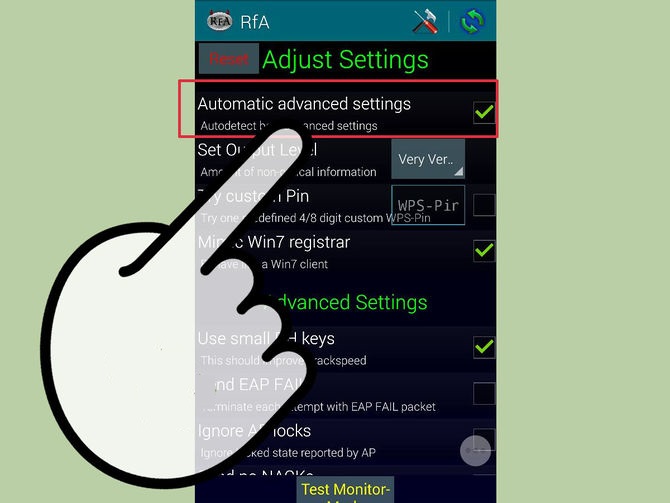
Verify your settings. In most cases you can leave the settings that appear at their default. Make sure that the "Automatic advanced settings" box is checked

7
Start the cracking process. Tap the "Start attack" button at the bottom of the Reaver Settings menu. The monitor will open and you will see the results of the ongoing crack displayed.
  • Cracking WPS can take anywhere from 2-10+ hours to complete, and it is not always successful.[1]
Method 2 of 2: WEP Routers


1
Root a compatible device. Not every Android phone or tablet will be able to crack a WPS PIN. The device must have a Broadcom bcm4329 or bcm4330 wireless chipset, and must be rooted. The Cyanogen ROM will provide the best chance of success. Some of the known supported devices include:
  • Nexus 7
  • Galaxy S1/S2/S3/S4/S5
  • Galaxy y
  • Nexus One
  • Desire HD
  • Micromax A67

Download and install bcmon. This tool enables Monitor Mode on your Broadcom chipset, which is essential for being able to crack the PIN. The bcmon APK file is available for free from the bcmon page on the Google Code website.
  • To install an APK file, you will need to allow installation from unknown sources in your Security menu. Step 2 of this article goes into more detail.

3
Run bcmon. After installing the APK file, run the app. If prompted, install the firmware and tools. Tap the "Enable Monitor Mode" option. If the app crashes, open it and try again. If it fails for a third time, your device is most likely not supported.
  • Your device must be rooted in order to run bcmon.

4
Tap "Run bcmon terminal". This will launch a terminal similar to most Linux terminals.Type airodump-ng and tap the Enter button. AIrdump will load, and you will be taken to the command prompt again. Type airodump-ng wlan0 and tap the Enter button.
5
Identify the access point you want to crack. You will see a list of available access points. You must select am access point that is using WEP encryption.


6
Note the MAC address that appears. This is the MAC address for the router. Make sure that you have the right one if there are multiple routers listed. Jot this MAC address down.
  • Also note the Channel that the access point is broadcasting on.

7
Start scanning the channel. You will need to collect information from the access point for several hours before you can attempt to crack the password. Typeairodump-ng -c channel# --bssid MAC address -w output ath0and tap Enter. Airodump will begin scanning. You can leave the device for a while as it scans for information. Be sure to plug it in if you are running low on battery.
  • Replace channel# with the channel number the access point is broadcasting on (e.g. 6).
  • Replace MAC address with the MAC address of the router (e.g 00:0a:95:9d:68:16)
  • Keep scanning until you reach at least 20,000-30,000 packets.

8
Crack the password. Once you have a suitable number of packets, you can start attempting to crack the password . Return to the terminal and type aircrack-ng output*.cap and tap Enter.

9
Note the hexadecimal password when finished. After the cracking process is complete (which could take several hours), the message Key Found! will appear, followed by the key in hexadecimal form. Make sure that "Probability" is 100% or the key will not work.[2]
  • When you enter the key, enter it without the ":". For example, if the key was 12:34:56:78:90, you would enter 1234567890.
you can find the tools her

Get paid to share your links!