Monday, October 6, 2014

Cou replaces the Slide to Answer slider with ‘Accept’ and ‘Decline’ buttons


When your iPhone is locked and you receive a phone call, you’ll see a slide to answer knob that allows you to respond to the call, and declining a phone call will require you to press the Sleep/Wake button twice. Cou is a new jailbreak tweak that allows you to customize this interface and replace the slider found on the Lock screen with buttons you normally see when you receive a call while the device is unlocked.
Developed by danteseig, Cou replaces the Slide to Answer slider with two buttons called ‘Answer’ and ‘Decline’. This means that you can easily reject a phone call by pressing the Decline button rather than double pressing the Sleep button.
Other than this, the tweak also allows you hide the tiny ‘Remind Me’ and ‘Message’ buttons that appear when you’re receiving a phone call.

After installing Cou, head to the tweak’s preference panel from the stock Settings app. There, you can enable or disable the tweak via the kill-switch toggle as well as hide the Remind Me and Message buttons on the incoming call interface. Enabling/disabling the tweak requires you to respring your device.
That’s all the tweak offers and if you’re like me and prefer to have buttons rather than the sliders, then you should definitely give this tweak a try. Cou is available on Cydia’s BigBoss repository for free and is compatible with iOS 7 devices.

PanguTeam confirms it’s working on iOS 8 jailbreak


Good news for those of you missing out on today’s iOS 8 festivities in order to save your jailbreak, the PanguTeam says it’s on the case. As part of a PSA yesterday to remind users to jailbreak while still possible, the team confirmed it has already begun work on hacking the new firmware.
Now before you go getting your hopes up, note that just because an iOS 8 jailbreak is being worked on, does not mean we will see one anytime soon. This is, however, more intel than we had a few days ago, and it may be pertinent to those deciding on whether or not to update to iOS 8.
Here’s the message that was posted on Weibo:

Roughly translated, the message from the PanguTeam says “[Reminder] Just 1 day before iOS 8 official release, guess that devices except iPhone 4 can’t be restored with 7.1.2 firmware. If you want to jailbreak please grab the last moment. For iOS 8, we are already on the way…”
Apple seeded iOS 8 earlier today, and it’s by far the company’s most-open iOS release to date. Some feel its addition of third-party Touch ID, widget and extension support could be detrimental to the jailbreak community, but others see these things as hotbeds for new, innovative tweaks.
Stay tuned.
Thanks Chan!

‘AppBuyer’ malware steals Apple IDs and passwords from jailbroken devices


Security research firm Palo Alto Networks reported this weekend about a new iOS malware that’s affecting jailbroken devices. It’s called ‘AppBuyer,’ and it’s programmed to steal a user’s Apple ID and password for the purpose of purchasing apps from the App Store.
It’s not clear exactly how AppBuyer is being installed, but the group says it could be done a number of ways including through a malicious Cydia Substrate tweak or PC jailbreaking utility. Those infected complain of random apps periodically popping up on their devices.
The program is a Trojan, set to execute three actions. First, it downloads an EXE file to generate a unique UUID, second it downloads a Cydia Substrate tweak to steal the user’s ID and password, and third, it downloads a utility to login to the App Store and buy apps.
What can you do to defend against this? As usual, we recommend staying away from unknown or “shady” repositories that often carry pirated tweaks. You can also check your device (using iFile, iExplorer or other software) to see if it contains any of the AppBuyer files:
  • /System/Library/LaunchDaemons/com.archive.plist
  • /bin/updatesrv
  • /tmp/updatesrv.log
  • /etc/uuid
  • /Library/MobileSubstrate/DynamicLibraries/aid.dylib
  • /usr/bin/gzip
Palo Alto Networks says that since it hasn’t figured out how AppBuyer is loaded onto devices, deleting these files may not solve the problem completely. It does say, however, that it is working on ways to block the app, including the use of custom URL, DNS and IPS signatures.
This isn’t the first time we’ve heard of malware making its way onto jailbroken devices. In August we told you about AdThief, a program designed to steal ad impressions, and earlier this year we reported on Unflod, a malicious app designed to steal Apple IDs and passwords.

Faces: add images to each of the Lock screen passcode keys


If you love customizing your iOS 7 device, you’d probably be interested in ‘Faces’, a brand new jailbreak tweak that was released on Cydia recently and offers a fairly unique feature that allows you to customize the passcode keys on the Lock screen.
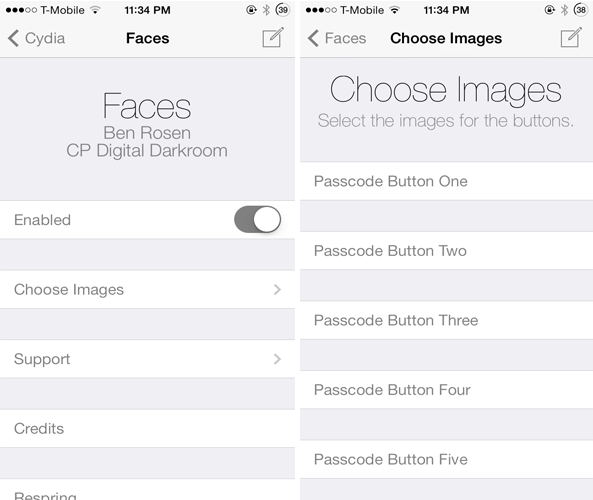
Developed by Ben Rosen & CPDigitalDarkroom, Faces allows you to customize the Lock screen passcode by adding images to each of the buttons. These images will appear right behind the keys as you can see from the screenshot above. 
After installing the tweak, head to its preference panel from the stock Settings app to start adding images. You’ll find a toggle that allows you to enable or disable the tweak and a ‘Choose Images’ button which will take you to a new interface where you can add a photo to each of the passcode buttons from the stock Photos app or even take a picture instantly and use it.

At the bottom of the settings pane, you’ll also find a slider that allows you to adjust the opacity of the images. This said, the only time that you are required to respring your device is when you enable/disable the tweak and when the amount of opacity is changed. For the rest, the changes are made in real time.
Personally, it’s a solid tweak that really makes your Lock screen passcode stand out. I tested it on both iPhone 5s running iOS 7.0.4 and another with 7.1.2 and there were no lags when transitioning from the Lock screen to the passcode interface.
If you’re interested to give it a try, Faces can be downloaded now from Cydia’s BigBoss repository for free and it’s compatible with all iOS 7 devices.

8 awesome things you can do with Activator


As a staple in the jailbreak community, Activator needs no introduction. This very deep and powerful tweak allows you to take advantage of a combination of gestures and specific events to create a virtually endless combination of actions on your iOS device.
Today, we’ve put together a list of some useful Activator actions/gestures you can set up on your iOS device. This is just the tip of the iceberg because with Activator, you can create an endless combination of gesture controls. The actions mentioned below do not make use of jailbreak tweaks, they are completely dependent on the stock iOS features.

Quick respring

By default, when you press the Sleep button, you’re device will be locked while short holding it will allow you to switch off your device. You can make the Power/Sleep button more useful by assigning a respring action whenever you double press the button.
How: Go to Activator > Anywhere and tap ‘Double Press’ option under Sleep Button section. Now scroll to the ‘Switches’ section and select ‘Respring’.

Save your battery

One of the most useful actions in Activator is the ‘Battery Drains’ option which allows you to indicate what action the device should take when the battery goes below a specific level.
Currently, when the battery level of my iPhone goes below 15%, the device automatically turns off Cellular Data and Bluetooth. If it reduces further below 10%, the Wi-Fi is switched off and the brightness is automatically reduced to 20%.
How: First you’ll new to create two new custom events. To do so, launch Activator and press the ‘More’ button in the top right corner. You’ll see a list of all the events you can create. Press the ‘Battery Drains’ option, slide the knob to 15% and click the ‘Save’ button. Perform this step again to create another event for 10% battery level.
Now, go to Activator > Anywhere  and you’ll see two new Activator actions that you just created below the ‘Battery Level’ section. Press the ‘Battery Drains Past 15%’ option and scroll down to the ‘Switches (Deactivate) section’. Now, select the switches that you want to be disabled such as Cellular Data and Bluetooth. To automatically reduce the brightness to a specific level, tap the ‘More’ button and choose ‘Set Brightness’.
Perform the above steps again to set the actions when the battery level goes below 10%.

Quickly switch to the Previous/Next track

When you have Activator, you can do so much more with the volume buttons rather than use it for adjusting the volume only. You can use the short hold volume up button to go to the next track while the short hold volume down button can be used to go to the previous track. This way, you no longer need to open your device to do it or even when you’re in an application, you can just make use of the volume buttons to change the song.
How: Head to Activator > Anywhere > Up Short Hold, and choose ‘Next Track’ from the Audio section. The same applies for going to previous track, but this time open ‘Down Short Hold’ gesture and choose ‘Previous Track’

Quickly compose a new email

One of the most interesting features of Activator is that you can assign flick gestures as well. For instance, you can flick up the Mail icon to compose a new email, flick up the Safari icon to launch Chrome browser or swipe up the Message icon to write a new message. There are various other gestures as well such as flick right, left or down and you can assign any app, action or toggles to each of these gestures.
How: To create a new email when you swipe up the Mail icon, go to Activator > Anywhere and tap on the More button in the top right corner. You’ll see an Icon Flick Up event. Press it and choose the Mail app from the list of applications. This activates the swipe up gesture for the Mail app.
Now, go back to Activator > Anywhere and press the Mail Icon Flick Up action from the Springboard section. Scroll down to the sharing section and select Compose Mail.

Toggle switches on a specific schedule

Did you know you could use Activator to automatically switch off Wi-Fi and Cellular Data when the specified time has passed? For instance, I’ve set Activator to switch off Wi-Fi, Cellular Data and Bluetooth, and enable Do Not Disturb mode when the time passes 1 a.m. This also saves your device’s battery while it’s not in use and ensures you’re not disturbed by alerts or phone calls while sleeping.
How: Navigate to Activator > Anywhere and press the More button. Now tap on the Scheduled option and select the scheduled day and time when you want specific actions to take place. Go back and open the custom event you just created from the Scheduled section. Now, select Wi-Fi, Cellular Data and Bluetooth from the Switches (Deactivate) section and choose Do Not Disturb mode from the Switches (Activate) section.

Activate the App Switcher

When you swipe up from the bottom part of the screen, Control Center is launched. You could use Activator to launch the App Switcher when you swipe up from the bottom right of the screen rather than double pressing the Home button.
How: To assign this action, go to Activator > Anywhere > From Screen Bottom-Right. First, you’ll need to select the Do Nothing option so that Control Center is not launched when the gesture is invoked. Then, choose Activate Switcher under the System Actions section.

Enable/disable vibrations when device is locked/unlocked

While your device is unlocked and in use, it’s not really required for vibration to be enabled since you’ll be aware of new notifications. You can automatically turn it on or off depending on the state of your device using Activator.
How: In Activator, open Anywhere and tap on Locked under the Device section. Scroll down to Switches (Activate) section and choose Vibration. For the unlocked state, open Unlocked from the Device section and scroll down to Switches (Deactivate) section and select Vibration.

Automatically reduce volume when headphone is plugged into device

Plugging your headphone into your device while the volume is set to maximum will really bust your ears. Personally, I’ve faced this situation many times, but you can use Activator to automatically reduce the volume to a lower level, such as 50%, when you plug in the headphone to your device.
How: Go to Activator > Anywhere and scroll down to the end of the list. You’ll find a Connected option right below the Wired Headset section. Open it and tap on the More button in the top right corner. Now press Set Volume and choose the level that you want the volume to be reduced to. Once done, press Save > Done and choose the volume option you created earlier from the Audio section.

What are your favorite Activator actions?

These are some of the most useful Activator actions you can set up on your device. Obviously, this is not the complete list because there are tons of actions that you can create using Activator, but you can let us know about your favorites in the comments section below.

CSwitcher brings your App Switcher to Control Center


The App Switcher, one of the most frequently used feature on iOS 7, can be accessed by double pressing the Home button. If you ever wanted to access the App Switcher from Control Center, you might want to check out a new jailbreak tweak known as CSwitcher.
Developed by Brogan Miner, CSwitcher replaces the Quick Launch apps in Control Center with the App Switcher, allowing you to take a quick glance at the apps running in the background directly from Control Center as well as close any of them. Personally, since I never use the Quick Launch apps, CSwitcher could be a good replacement.
After installing the tweak, double pressing the Home button launches Control Center where you can view the App Switcher from the bottom section where the Quick Launch apps are originally located. Swiping CSwitcher left or right displays all the open apps. To kill any of them, simply tap and hold on an icon and a tiny ‘x’ button will appear on top of it. Pressing it will close the specific app.


Once you install CSwitcher, a new preference panel will be added to the Settings app. From there, you can enable or disable the tweak via the kill switch toggle, choose to view five apps instead of four, as well as enable or disable paging. If paging is disabled, you can continuously scroll through open apps without the page-like effect.
You’ll also find an ‘App Snapshots’ toggle at the bottom of the preference panel that allows you to switch between two views: app icons and app preview cards. Once you’re done with the configurations, simply press the ‘Apply’ button for the changes to take place.
That’s all the tweak offers and if you find it more convenient accessing the App Switcher from Control Center, you should probably check out CSwitcher. As mentioned earlier, the tweak can be a good replacement to the Quick Launch apps if you don’t use them frequently.
CSwitcher can be download from Cydia’s BigBoss repository for free and requires iOS 7 to work.

UnlimMusic allows you to stream and download songs from SoundCloud


SoundCloud is a popular audio sharing website where users can record, upload and share their original contents and has become a common platform for musicians to distribute their tracks. Along with streaming songs, you can also download tracks which the artist allows, a feature that is missing from the mobile app.
UnlimMusic is a jailbreak tweak developed by UnlimApps that adds a standalone app to the Home screen where you can search and listen to songs from SoundCloud as well as download permissible tracks. This means that only the songs that are allowed by the respective artists can be downloaded, unlike the SoundCloud iOS app which lacks this feature.
Once you install the tweak, a new icon will be added to the Home screen where you can launch the app. Once you open it, you’ll be greeted with a list of all the different music genres and each of them contains musics belonging to that particular genre. You can tap on any of the tracks to start streaming them. The ‘Downloadable’ tab is the place where you can view all the songs which can be downloaded to your iPhone.


All the tracks that you download will be added to the ‘Files’ tab where you can listen to them offline and more importantly, import them to the stock Music app.
The app also provides a list of all the tracks you’ve recently listened to from the ‘Recents’ tab and it also allows you to view your favorite artists from the ‘Favorite Users’ tab.
Although the tweak does its job nicely, the only issue that I had with UnlimMusic was that it took a few reboots for the app icon to appear on the Home screen and it would sometimes disappear for unknown reasons. Other than this, everything works smoothly.
If you frequently use SoundCloud, you should probably give this tweak a try. UnlimMusic can be downloaded via Cydia’s BigBoss repository for free.
Another alternative is Soundcloud Downloader Pro, which is available for free in the App Store.

Get paid to share your links!